Enable Proximity Join
Proximity Join allows you to discover and add a nearby available MTRA, i.e., the
The feature functions in combination with Bluetooth and ‘Bluetooth Beaconing’, an integral feature in MTRAs.
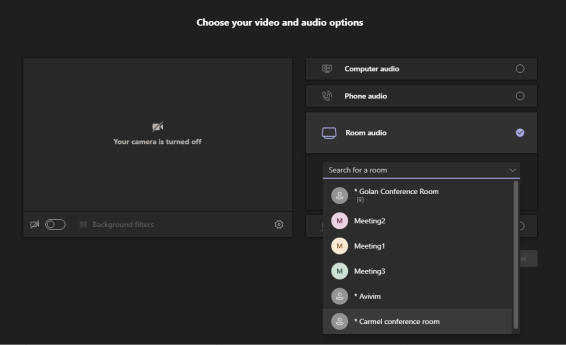
After you select the room audio device, the meeting is opened without any audio device on your PC client, and then the selected device gets a request to join the meeting.
| ➢ | To enable ‘Proximity join’ using the RX-PAD: |
| 1. | This feature requires Admin login. Navigate to ‘Device Admin Settings’ (see Access Device Admin Settings). |
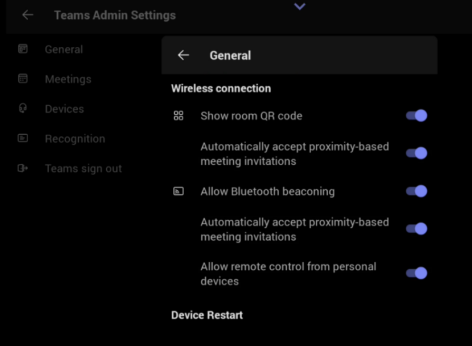
| 2. | Scroll down and tap Teams Admin Settings, then navigate to Teams Admin Settings > General. |
| 3. | Scroll down to Wireless connection and verify that the Automatically accept proximity-based meeting invitations toggle options are turned on. |
For more details about proximity joining, refer to the relevant Microsoft Teams documentation.